
ATLAS Skin Studio
Minecraft Skin Editor – free, in 3D, right in your browser
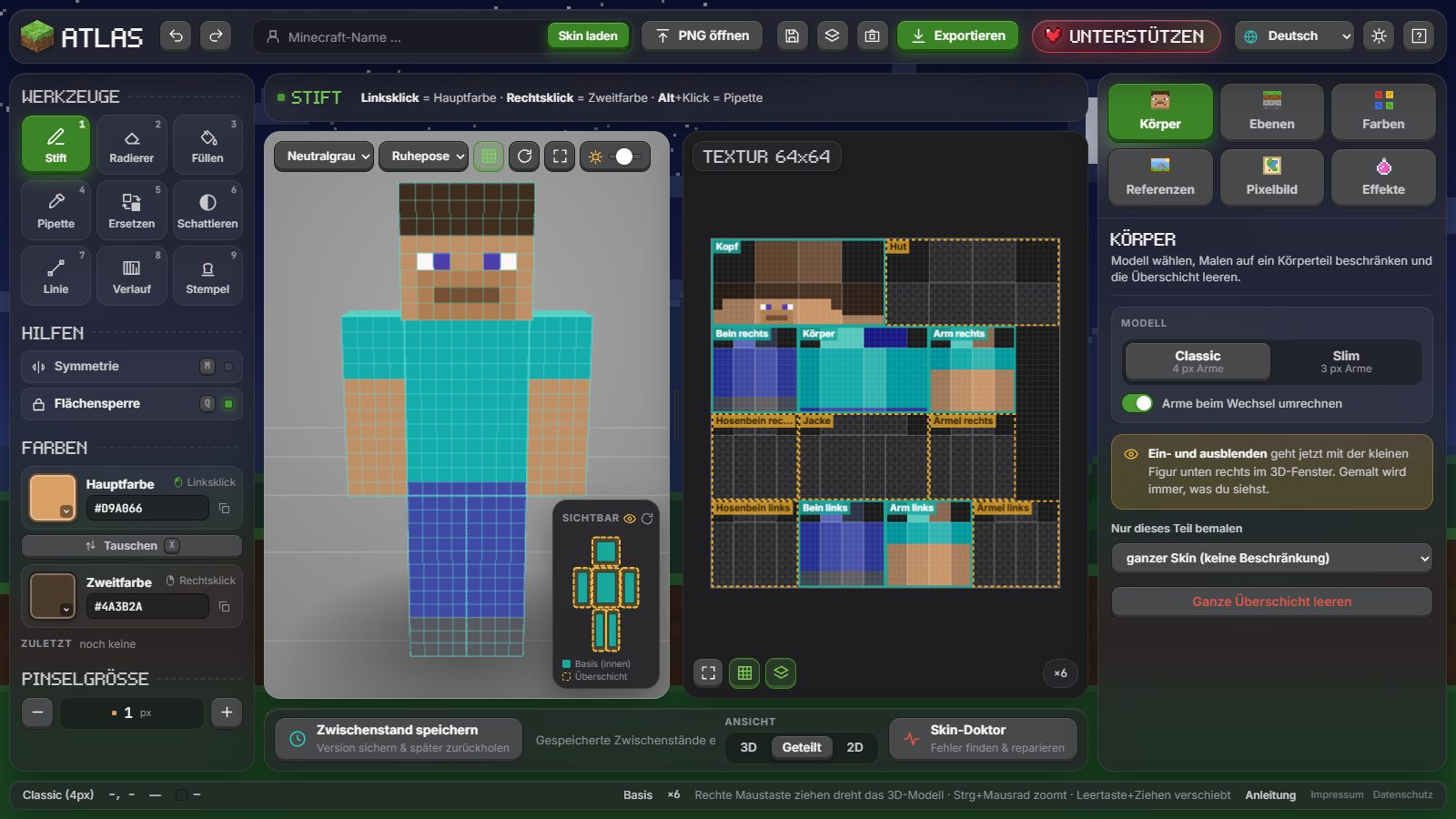
ATLAS Skin Studio is a free Minecraft skin editor that runs in your browser. Paint directly on the 3D model or on the 64 × 64 texture, design the second layer (hat, jacket, sleeves), swap colours in one click and export a PNG for Minecraft Java and Bedrock. No account, no download, no ads.
What you can do with the skin editor
Everything you need to create a Minecraft skin from scratch or to change an existing one.
Paint on the 3D model
Draw right on your character and turn it with the right mouse button. Everything you paint appears on the 2D texture at the same time.
Second layer made easy
What you see is what you paint: visible pixels of the outer layer are painted, empty ones let you paint the base. A small figure in the corner shows or hides every body part.
Classic and Slim
Switch between Steve-style arms (4 pixels wide) and Alex-style arms (3 pixels wide). The editor can convert the arms for you.
Replace a colour
Click a colour in your skin and every pixel of exactly that colour changes at once, with a preview before you commit.
Real paint tools
Pencil, eraser, fill, colour picker, shading, line, gradient and stamp, plus symmetry and undo/redo with Ctrl+Z and Ctrl+Y.
Start from any skin
Load the skin of any Minecraft player by name, open a PNG or start with the template. Old 64 × 32 skins are converted automatically.
Layers, references, pixel art
Work with layers, keep reference images next to your skin and turn a picture into Minecraft-style pixel art. The skin doctor finds common mistakes.
Private and free
Your skins never leave your computer. No account, no tracking, no ads – in English, German, Spanish, French and Portuguese.
How to make a Minecraft skin
Five steps from the first pixel to your own skin in the game.
- Open the editor. Start with the template, type a player name and click Load skin, or click Open PNG to edit a skin you already have.
- Choose the model. In the Body tab pick Classic (4-pixel arms) or Slim (3-pixel arms).
- Paint. Choose a colour on the left – left click paints with the main colour, right click with the second colour – and paint on the 3D model or on the texture.
- Add a hat, jacket or sleeves. In the small figure at the bottom right of the 3D view, click the inside of a body part to hide its base. Golden boxes appear: paint on them to create outer-layer pixels.
- Save your skin. Click Export or press Ctrl+S. You get a 64 × 64 PNG file.
Use your skin in Minecraft
The exported PNG works in both editions.
Java Edition
Open the Minecraft Launcher → Minecraft: Java Edition → Skins → New skin → Browse, choose your PNG, pick Classic or Slim and click Save & Use.
Bedrock Edition
Start Minecraft → Dressing Room → Classic Skins → Import → Choose New Skin, then select your PNG and the arm type. Importing skins is available on PC and mobile devices.
Frequently asked questions
Short answers about the Minecraft skin editor.
Is ATLAS Skin Studio really free?
Yes. Every feature is free, without an account and without ads. If you like the editor, you can support it voluntarily with the heart button – you get the same editor either way.
Does it work for Java and Bedrock?
Yes. The editor saves standard 64 × 64 PNG skins that work in Minecraft: Java Edition and in Bedrock Edition wherever skin import is available.
What is the second layer (overlay)?
Every Minecraft skin has two layers: the base and an outer layer for hats, jackets, sleeves and trousers. Transparent pixels in the outer layer show the base underneath, so you can add 3D-looking details.
Classic or Slim – what is the difference?
Classic arms are 4 pixels wide like Steve's, Slim arms are 3 pixels wide like Alex's. Choose the model that matches your skin; you can switch at any time.
Can I edit an existing skin?
Yes. Type the player name and click Load skin, or open the PNG file of a skin you downloaded.
Are my skins uploaded anywhere?
No. Everything happens in your browser. Only when you load a skin by player name does your browser ask a skin service for that skin.
Ready for your own skin?
Open the free Minecraft skin editor and start painting – it takes only a few seconds to load.
Open the editor